
Packaging skills and connectors for a business team: a hands-on walkthrough for developers and admins
The Friday chore
Every week I train a cohort of developers and admins on Claude. After each session the same chore appears: collect the attendee feedback, clean it up, work out what confused people, check next week’s schedule, and email the cohort. By hand it takes me about 2hours.
It is a good automation candidate because it is repetitive, it has several steps, and it spans three tools: a feedback file in Drive, a calendar, and an inbox. That is the kind of work Claude Cowork is built for. In Cowork you hand Claude a goal instead of asking one question at a time, and it plans the work, uses your files and connected tools, shows each step, and returns finished work for your review. It asks first before actions that matter, such as sending.
Update: Claude Cowork is now part of the unified Claude experience and is no longer a separate mode. Claude Cowork and chat are one Claude | Claude Help Center
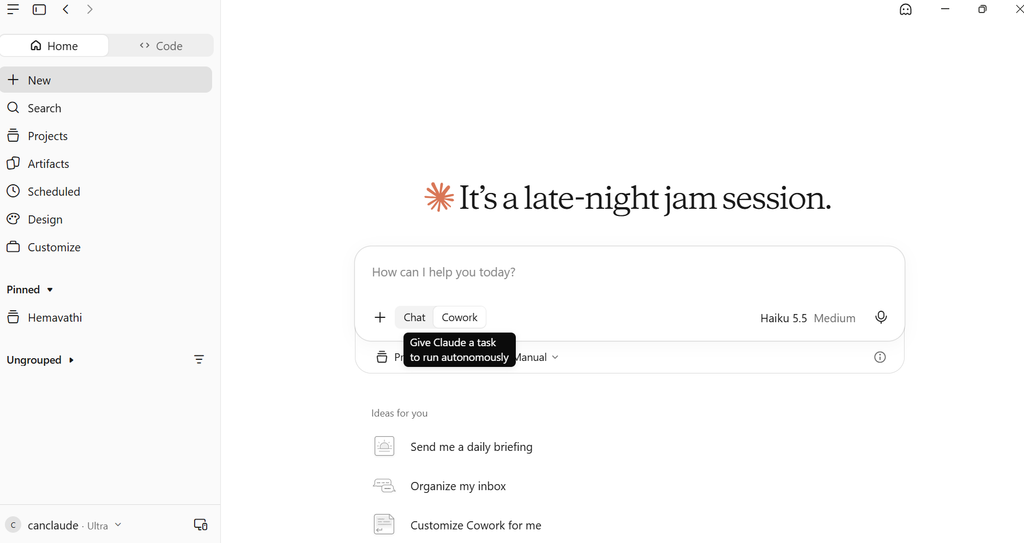
This post shows how I built the workflow in Cowork in four layers, then packaged it as a plugin so a teammate can install the same workflow.
| Layer | What it adds | In this build |
| 1. Task | Claude does the work once | Messy feedback CSV to themes |
| 2. Connectors | Access to the tools | Google Drive, Calendar, Gmail |
| 3. Skill | The “how”, written once | weekly-cohort-digest |
| 4. Plugin | One installable package | cohort-digest with a /digest command |
The mental model: connector, skill, plugin
- Connector: gives Claude access to a tool or data source, such as Drive or Gmail.
- Skill: teaches Claude how to do a task the way your team does it.
- Plugin: bundles skills, connectors, slash commands and sub-agents into one package you install once and share.
Step 1: Start with a boring task
I started with no setup at all. I started with deliberately messy feedback file with no real attendee data was involved: 39 rows with five date formats, ratings written as “four”, “3/5” and “8/10”, blank ratings, one duplicate row, and comments ranging from a single word to a full paragraph. Then I asked:
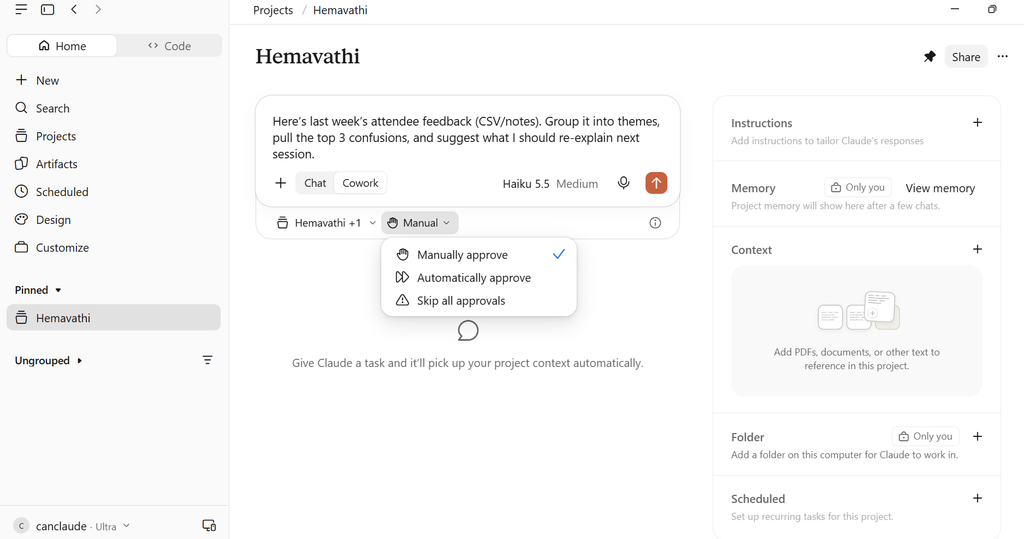
Here’s last week’s attendee feedback. Group it into themes, pull the top 3 confusions, and suggest what I should re-explain next session.
Claude read the 38 unique responses, flagged the duplicate, the mixed rating formats and the five date formats, normalised everything to a 5-point scale, and reported 36 rated responses averaging 3.7 out of 5. Its top three confusions: connector scope and permissions, the vocabulary of building blocks (MCP, connectors, skills, plugins), and which features and data rules apply to which plan.
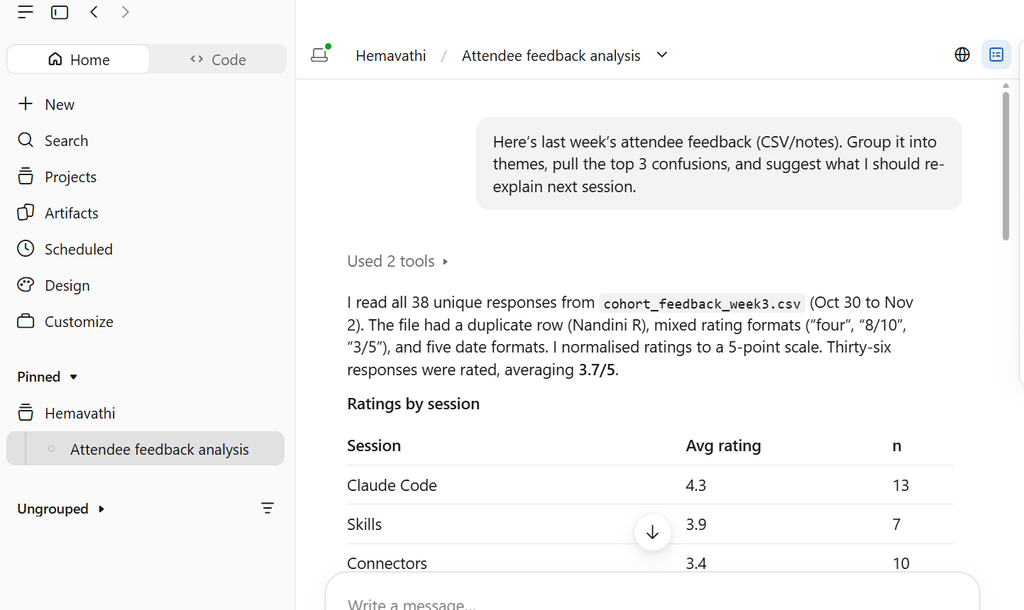
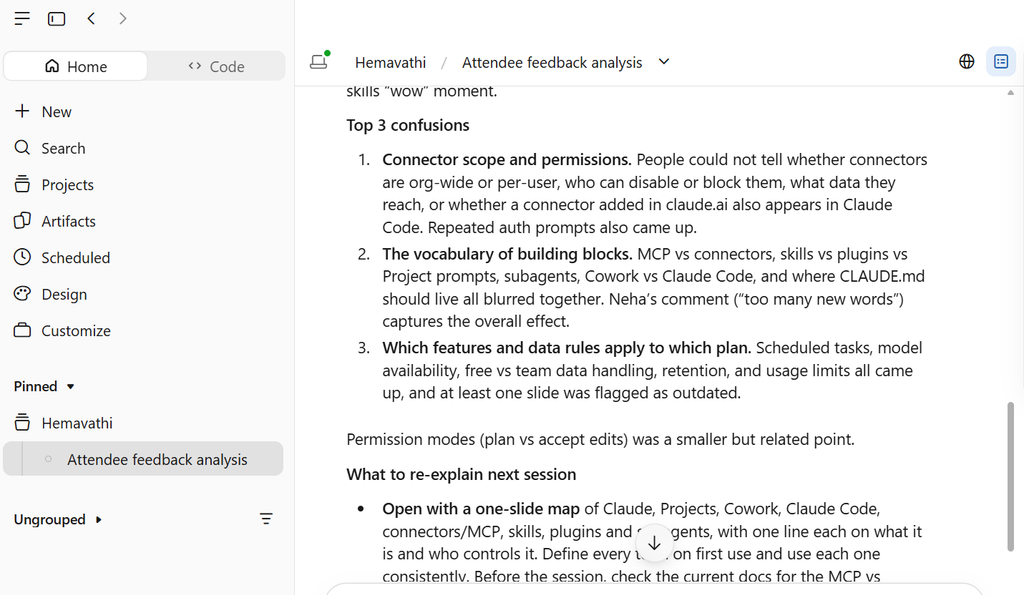
Even before any tools were connected, Claude handled messy input and showed its judgment calls. I still counted the rows myself, because trust comes from checking: 39 rows in the file, 38 unique.
Step 2: Add connectors
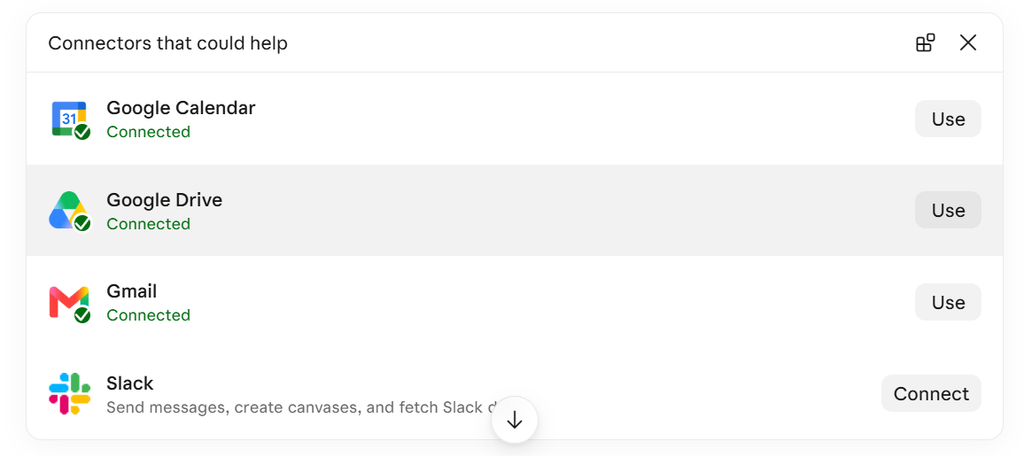
Next I connected Google Calendar, Google Drive and Gmail. The connectors panel shows what is connected and offers others, such as Slack, with a Connect button.
Google’s consent screen is granular: you tick what Claude may do, and nothing is selected by default. The options include viewing email messages and settings, managing drafts and sending emails, and reading, composing and sending emails.
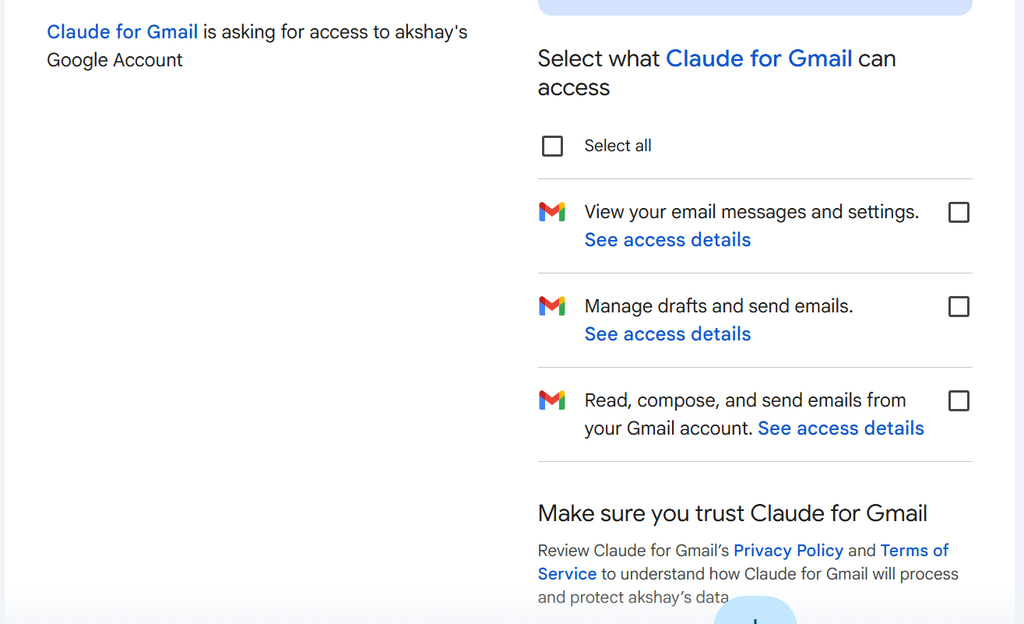
One detail matters for admins. Google groups drafting and sending under the same permission wording, so “draft only, never send” can’t be enforced by that permission alone. In this build it comes from two places: the rules written into the skill, and Claude’s approval prompts.
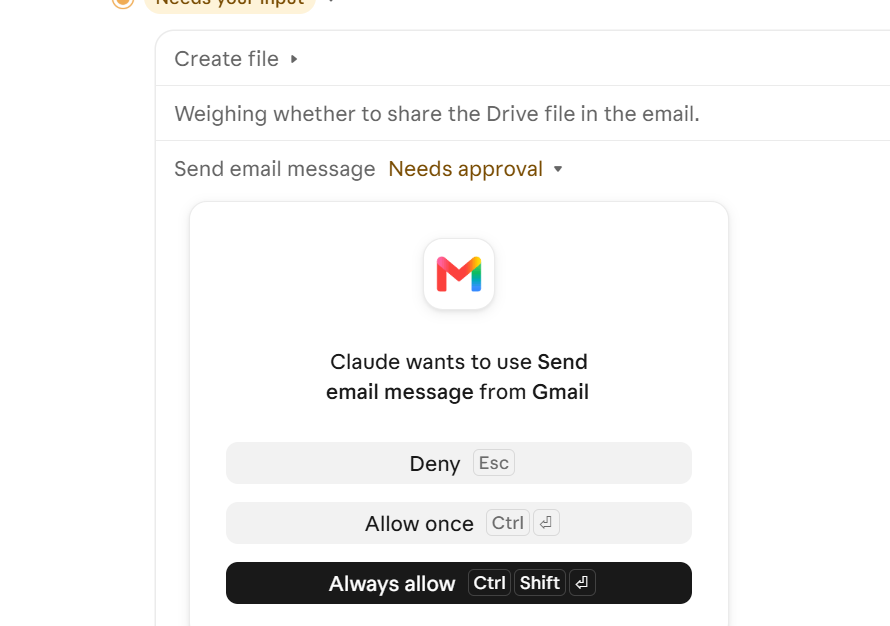
Those prompts exist at two levels. For a session you choose how Claude asks: manually approve, automatically approve, or skip all approvals. Per tool, a prompt such as “Claude wants to use Send email message from Gmail” offers Deny, Allow once or Always allow. For anything that sends, I use Allow once.
I also needed realistic inputs, so I had four sessions in Google Calendar for the following week and had the CSV in Drive. Then the Step 2 prompt:
Read the cohort feedback file in my Drive. Check my calendar for next week’s [Claude Training] sessions. Group the feedback into themes, map each theme to the session that should address it, and create a Gmail draft to the cohort. Don’t send it.
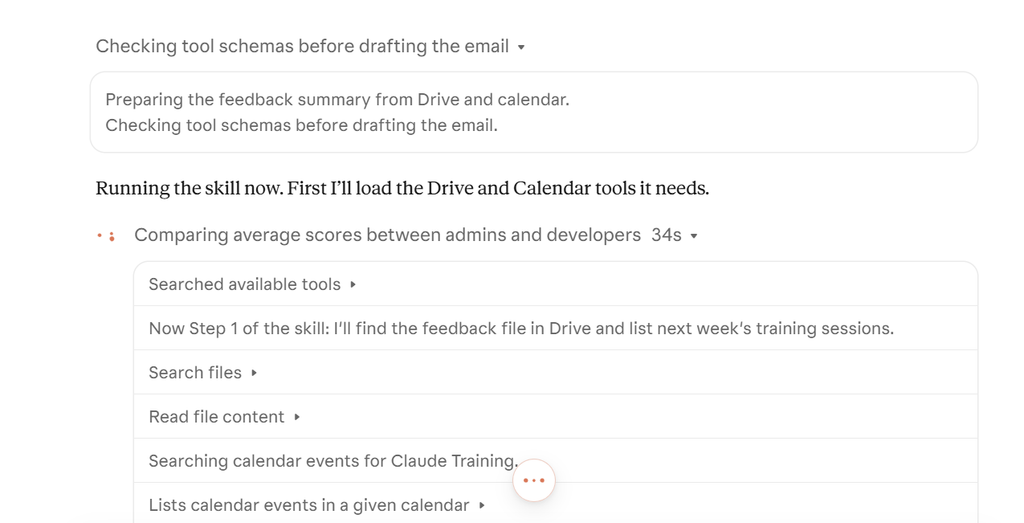
Claude searched Drive, read the file, listed the calendar events and prepared the draft.
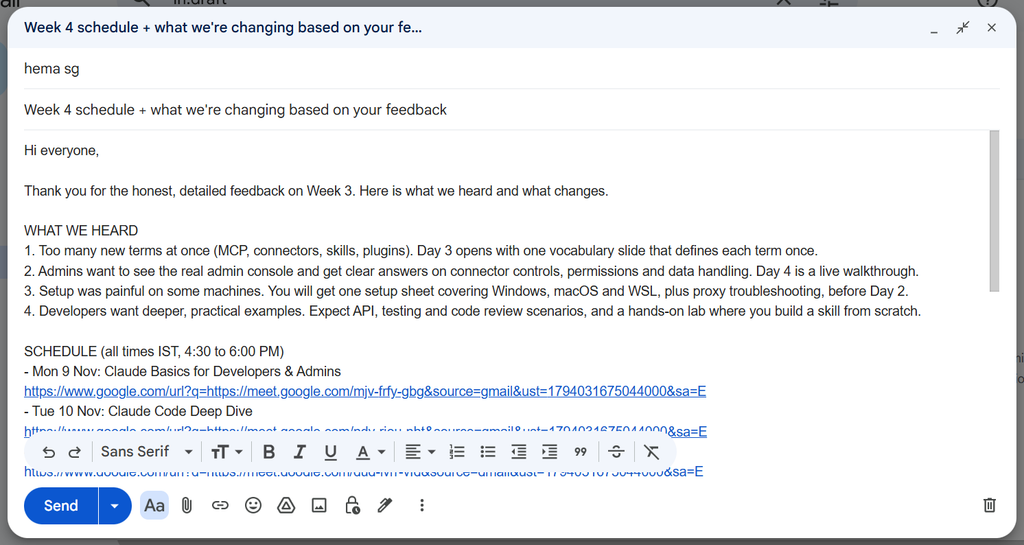
One catch: my calendar’s default time zone was UTC, so events created for 11:00 landed at 4:30 PM IST. I noticed because the email needed IST times. Check time zones whenever Claude writes to a calendar.
Step 3: Turn the prompt into a skill
That long prompt is the pain point: every week I would paste it again and get slightly different output. A skill fixes both. It is a folder with a SKILL.md: a short description that tells Claude when to use it, then the instructions.
—
name: weekly-cohort-digest
description: Builds the weekly training cohort digest… Use when the user asks for the weekly digest, cohort email, Friday digest… Does not send unless explicitly told to.
—
The body covers four things:
- Inputs: find the newest feedback file in Drive and next week’s [Claude Training] events yourself, and stop if either is missing.
- Cleaning rules: dates to YYYY-MM-DD, ratings to 1–5, standardised roles and session names, duplicates removed, blanks never guessed.
- Output: cleaning notes, a theme table, the top three confusions, a session mapping and the email draft (IST, under 300 words).
- Safety: draft only, no attendee names or quotes in the email, never share Drive files or edit calendar events.
The description is what makes Claude choose the skill. One comment in my sample data complained that a skill never triggered, and a vague description is the usual cause. Write it like a trigger: say what the user will actually type.
To install it, zip the folder (with SKILL.md inside it), upload it from the Customize page, and confirm it shows as enabled.
Step 4: Package it as a plugin
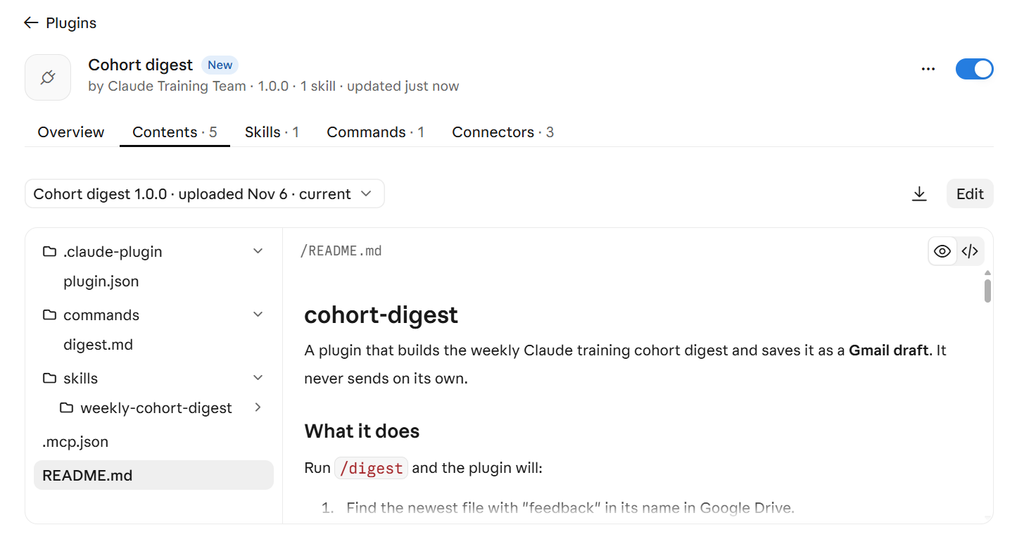
A skill alone is still personal. A plugin lets a teammate install the whole workflow, the skill plus the connector setup, in one step. This is the layout:
cohort-digest/
├── .claude-plugin/
│ └── plugin.json
├── .mcp.json
├── commands/
│ └── digest.md
├── skills/
│ └── weekly-cohort-digest/
│ └── SKILL.md
└── README.md
- plugin.json is the manifest: name, version, description, author.
- .mcp.json lists the connectors (Drive, Calendar, Gmail).
- commands/digest.md is the /digest entry point.
- skills/ holds the skill.
- README.md tells a new user what it does and that nothing is sent.
Simplified examples:
{
“name”: “cohort-digest”,
“version”: “1.0.0”,
“description”: “Weekly training cohort digest: feedback in Drive plus calendar sessions to a Gmail draft”,
“author”: { “name”: “Claude Training Team” }
}
—
description: Run the weekly cohort digest and create a Gmail draft (never sends)
—
Use the weekly-cohort-digest skill. Find the newest feedback file in Drive and next week’s [Claude Training] sessions, then create a Gmail draft. Do not send.
A common mistake: keep commands/ and skills/ at the plugin root, not inside .claude-plugin/.
I didn’t type these files by hand. I used the Plugin Create plugin from the Customize page with a short brief, then read every generated file before installing:
Create a plugin called cohort-digest. Include my weekly-cohort-digest skill, connectors for Google Drive, Google Calendar and Gmail, and a /digest command that runs the skill and creates a Gmail draft without sending. Safety: draft only, never send unless I say send. Include a README.
My first build exposed /digest as a second skill next to weekly-cohort-digest, so the plugin showed 2 skills and no commands. The second build is cleaner: 1 skill, 1 command and 3 connectors, versioned 1.0.0.
Step 5: Run it
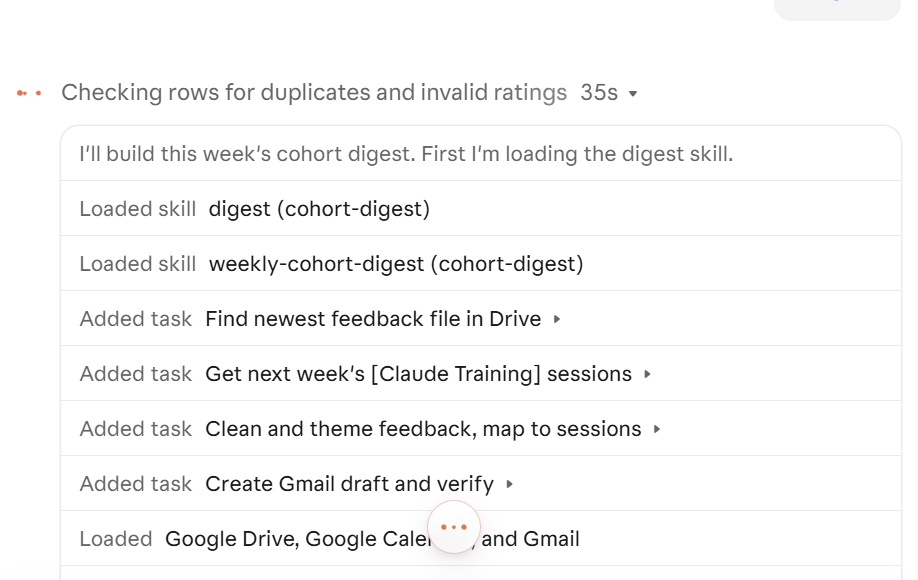
In a new chat I typed /digest. Autocomplete listed it, and the tooltip showed the description that tells Claude when to use it. Claude loaded the skill, created a four-item task list (find the newest feedback file, get next week’s sessions, clean and theme the feedback, create the draft and verify), loaded the three connectors, and prepared the Gmail draft.
Before writing anything to Gmail, Claude showed a “Create draft email” approval with the full subject and body. The draft covered 38 responses after cleaning, an average rating of 3.6 overall (developers 4.1, admins 2.9), and the top themes: terminology overload, admin governance and hands-on depth.
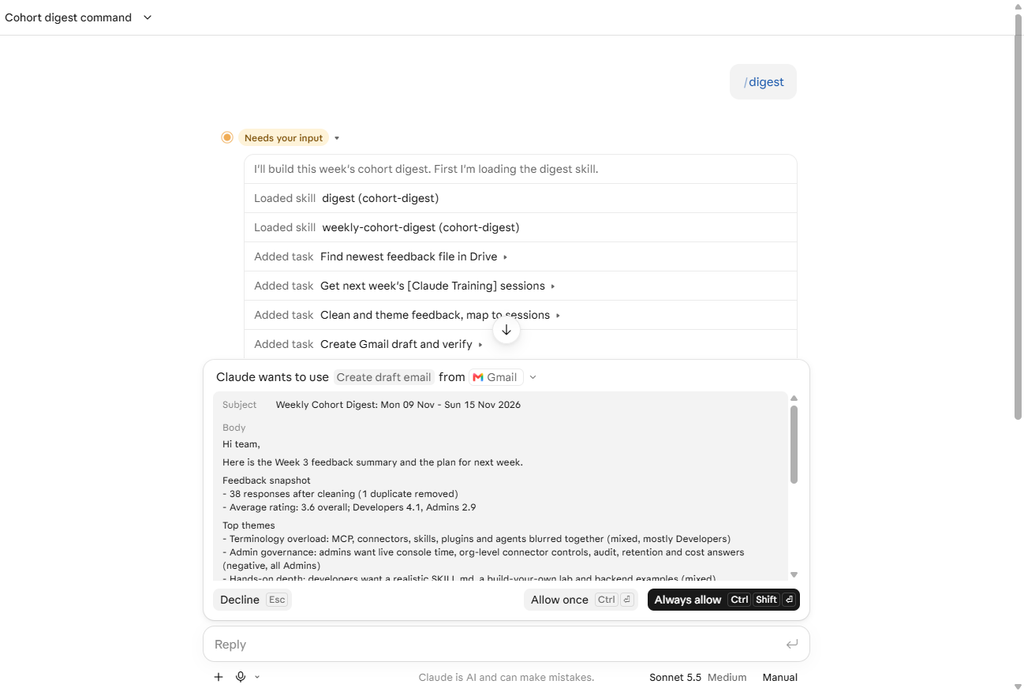
In my sample data, that gap between developers (4.1) and admins (2.9) is the real insight: developers were happy, admins were not, and the Day 4 session now has a clear reason to exist.
Sharing it with a team
This is where I hit a real limit. The plugin page has a Share button, and on my plan the dialog says sharing with your team needs a Team plan.
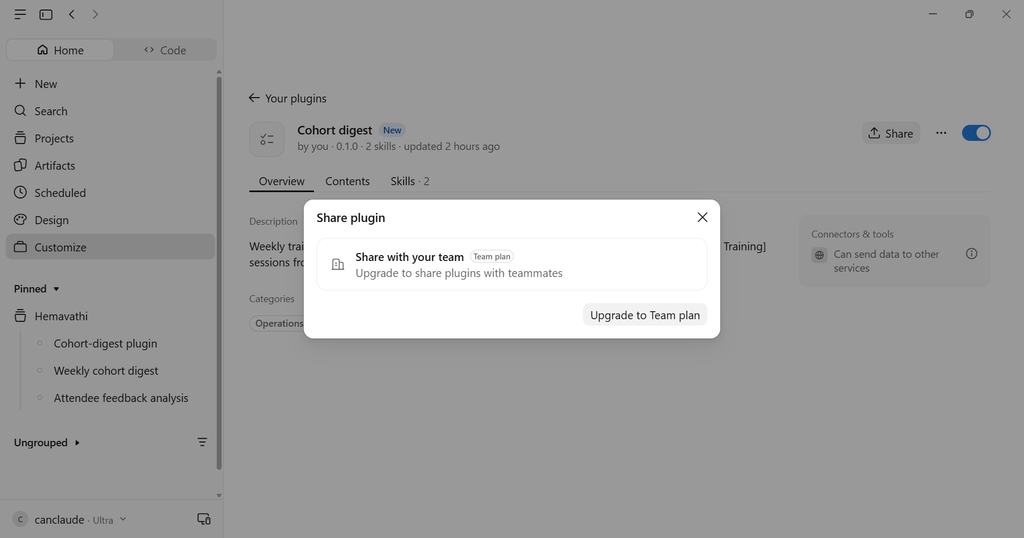
What still works: the plugin page has a download button, so you can export the plugin as a file and import it elsewhere. On Team and Enterprise plans, the docs say owners can choose which plugins members can add, install some for everyone, and add their own plugins. I couldn’t test that part, so check your admin console before relying on it.
Two points matter for admins:
- A plugin carries the setup, not the data or the logins. Each teammate still connects their own Google account.
- Treat it like code: version it (mine went from 0.1.0 to 1.0.0), keep a README, and review the connectors and the safety rules before anyone installs it.
What I had to check
- Row count: I first described the file as 40 rows. It has 39, and 38 unique.
- Time zone: calendar events were created in UTC; the email needed IST.
- Local files: Claude can’t read a folder on my computer from a cloud chat. For a team workflow, keep the inputs in Drive.
- Averages: one run said 3.7 and the plugin run said 3.6. Half-point ratings such as 3.5 are the likely cause, but I didn’t confirm it.
- Themes are judgment calls: the third top confusion differed between two runs (plan and data rules in one, setup friction in another). Review the themes before the email goes out.
- Duplicate skill: the standalone skill and the plugin’s copy can both be active. Keep one enabled.
- Scheduling: I didn’t test running /digest on a schedule, so I leave it as a next step.
Before and after
| By hand | With the plugin | |
| Clean the feedback | 30 min | included |
| Theme and map to sessions | 60 min | included |
| Draft the email | 15 min | included |
| Review and approve | 15 min | 15 min |
| Total | 120 min | 15 min |
Takeaways
For developers
- Start with the task, add connectors, then write the skill. Don’t write the skill first.
- Make the skill description a trigger, and put the safety rules in writing.
- A plugin is a folder you can read, version and review, like any other code.
For admins
- Approval prompts are your control point, especially for anything that sends.
- Because Google groups drafting and sending together, “draft only” has to be enforced by rules and review, not by the permission alone.
- Decide who can install plugins, and which connectors they can bundle, before you roll one out.