
The challenge of connecting AI agents to external systems
AI agents are becoming more capable. They can search for information, analyze documents, process data, call APIs, and execute multi-step workflows. But to perform these tasks, an agent often needs access to external tools and services.
For example, a research agent might need to search the web, retrieve information from an API, and organize the results into a report. A developer agent might need to access a code repository, inspect files, and run tests.
Each integration introduces its own configuration, authentication requirements, and execution limits. When an organization builds multiple agents, managing these connections individually can become complicated.
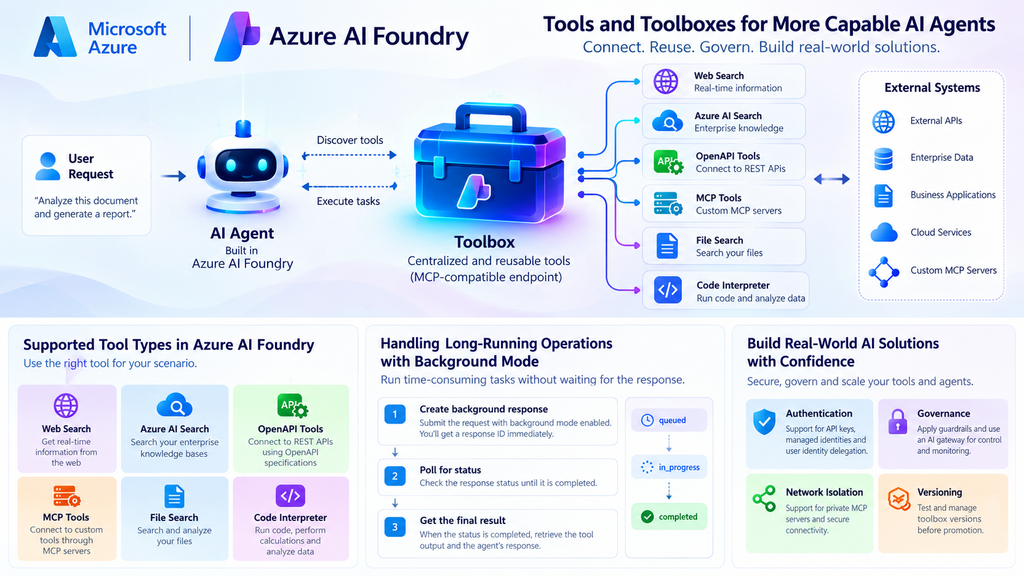
This is where tools and toolboxes in Microsoft Foundry become useful. They help developers connect agents to external capabilities, reuse integrations, and manage how tools are accessed.
However, connecting a tool is only the beginning. Developers must also consider tool discovery, authentication, network connectivity, governance, and what happens when an operation takes longer than expected.
What are tools in Microsoft Foundry?
A tool gives an AI agent the ability to perform an operation beyond generating a text response.
The model can understand a user’s request and decide which capability is needed. The tool then performs the operation and returns its result to the agent.
For example, an agent analyzing a research paper might use file search to retrieve relevant information, code interpreter to calculate statistics, or an external API to obtain additional data.
Microsoft Foundry supports several tool types for different requirements.
| Tool | What it does | Example |
|---|---|---|
| Model Context Protocol (MCP) | Connects to tools exposed by an MCP server | Retrieve information from an external service |
| OpenAPI | Connects to APIs described by an OpenAPI specification | Fetch product information from a REST API |
| Azure AI Search | Retrieves information from indexed data | Find relevant technical documentation |
| File search | Searches uploaded files and knowledge sources | Find specific information in research papers |
| Code interpreter | Executes code for supported analysis tasks | Calculate statistics from a dataset |
| Web search | Retrieves information from the web | Research a technical topic |
The choice depends on the operation the agent needs to perform and the capabilities supported by the selected model and environment.
A well-designed tool should have a clear description, well-defined inputs, and predictable outputs. These details help the model select the appropriate tool and use it correctly.
For more information, see Microsoft Foundry tool best practices.
Understanding Microsoft Foundry Toolbox
As the number of tools increases, developers need a better way to manage them.
Consider an application with separate agents for research, document analysis, and data processing. All three agents might need access to a search service, an external API, and a document-processing tool.
Without a centralized approach, developers may need to configure the same integrations repeatedly. Changes to an API or its authentication requirements can also require updates across multiple agents.
Microsoft Foundry Toolbox provides a centralized way to manage and share tools through an MCP-compatible endpoint. Developers can define a collection of tools once and allow compatible agents to consume those capabilities without implementing every integration independently.
A toolbox can include supported integrations such as MCP servers, OpenAPI tools, Azure AI Search, file search, web search, and code interpreter.
The toolbox also provides capabilities for authentication management, versioning, and governance. This makes it easier to manage shared integrations as an application grows.
How does a toolbox work?
The general architecture looks like this:
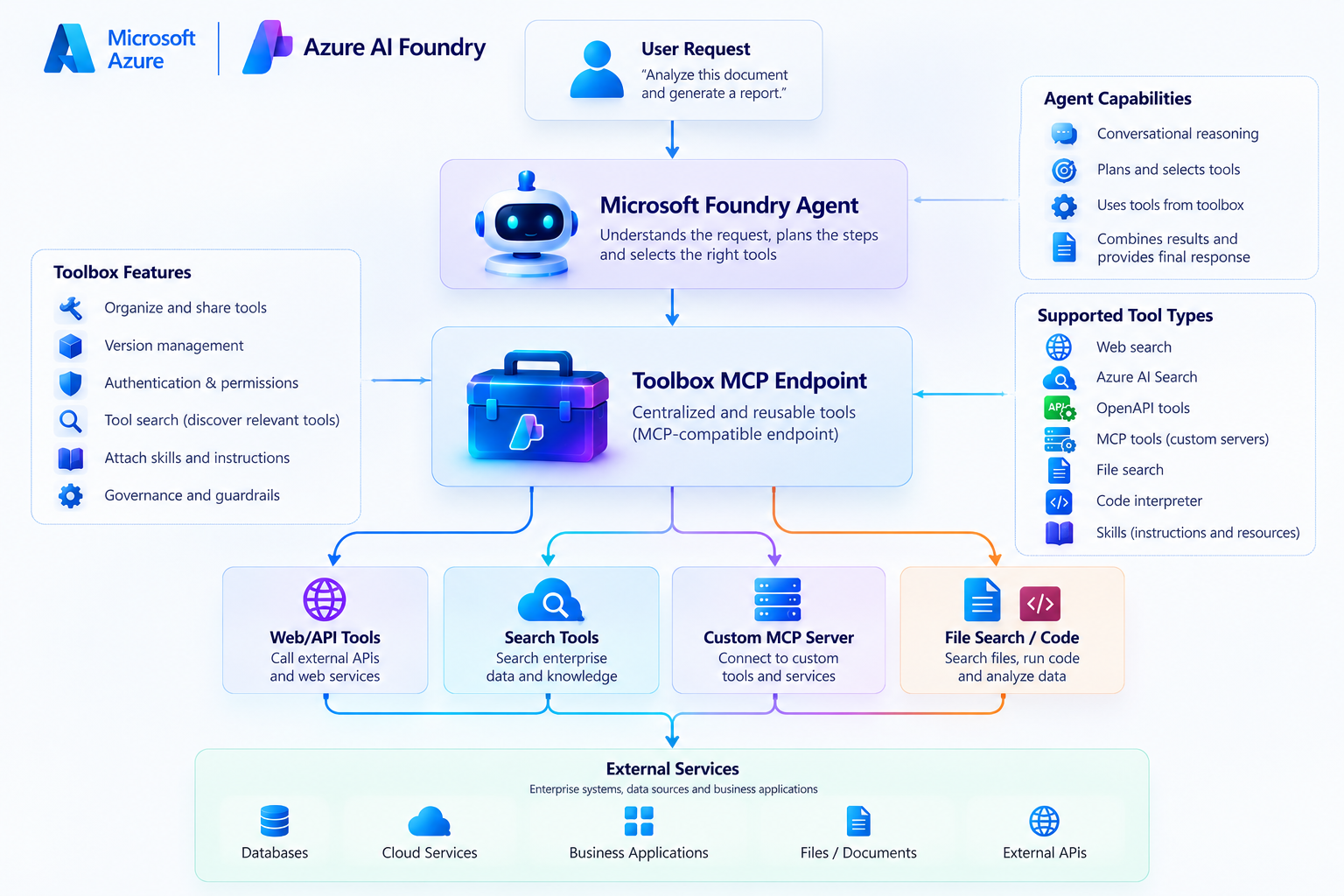
The agent connects to the toolbox endpoint and discovers the available tools. When a request requires a particular capability, the agent selects the appropriate tool and receives its result.
The toolbox provides a shared integration layer, but the underlying tool still performs the actual operation. Its own service availability, permissions, and execution limits remain important.
Another useful aspect is that toolboxes are not limited to agents built directly in Foundry. MCP-compatible runtimes and clients, including supported custom agent implementations, can consume a toolbox endpoint.
For the complete architecture and supported capabilities, see What is Toolbox in Microsoft Foundry?.
Understanding tools, toolboxes, and skills
Tools, toolboxes, and skills are related, but they solve different problems.
A tool defines an operation. A toolbox organizes and shares tools. A skill provides reusable instructions or procedural knowledge that helps an agent complete a task.
Consider a document-analysis agent that must review a collection of research papers and generate a summary.
A document-search tool retrieves relevant passages. A code-execution tool can perform supported calculations. A skill can provide instructions for extracting the research objective, methodology, findings, and limitations in a consistent format.
The agent combines these capabilities to complete the request.
In simple terms:
- Tools define what the agent can do.
- Toolboxes organize and expose those capabilities.
- Skills describe how to approach a task.
- The agent coordinates the process.
Microsoft Foundry supports attaching skill references to toolbox versions. Skills are exposed as MCP resources, so the consuming client or agent framework must support the MCP Resources protocol to discover and load them automatically.
The skills feature is documented as a preview capability. Developers should verify its current requirements and limitations before using it in production.
See Microsoft Foundry skills documentation.
Managing large tool collections with tool search
As an application grows, a toolbox might contain dozens or even hundreds of tools.
Sending every tool definition to the model for every request can increase token consumption and use up context that would otherwise be available for the conversation and relevant data. It can also make it harder for the model to distinguish between similar tools.
Microsoft Foundry provides tool search to address this challenge.
Instead of exposing the entire tool catalog to the model at once, tool search allows the agent to discover relevant tools when needed.
The feature uses two meta-tools:
tool_searchdiscovers tools relevant to a particular request.call_toolinvokes a discovered tool.
For example, suppose a developer agent has access to tools for repository searches, test execution, documentation lookup, and deployment operations. If the user asks it to explain a function in a source file, the agent should first discover the relevant repository or file-reading capability rather than loading every available tool definition.
The process is straightforward:
- The user submits a request.
- The agent identifies the capability it needs.
- Tool search discovers relevant tools.
- The agent calls the selected tool.
- The result is returned for the agent to continue its response.
Tool search is particularly useful when many tools are available but only a few are relevant to each request.
Developers can also control which tools are surfaced, including pinning important tools so they remain available. Tool search itself is documented as a preview feature, so its current support should be checked before deployment.
See Enable tool search in Microsoft Foundry.
Connecting custom tools through MCP
Model Context Protocol (MCP) provides a standard way for AI applications to connect to external tools and contextual resources.
Instead of creating a completely different integration mechanism for every agent, developers can expose operations through an MCP server and allow compatible clients to discover and invoke them.
For example, a custom MCP server for a research platform might expose operations such as:
- Search for publications by topic.
- Retrieve metadata for a paper.
- Extract selected sections from a document.
- Start a large data-processing job.
- Retrieve the result of a completed job.
The Foundry agent can use these operations when the user’s request requires them.
This separation keeps the implementation of external operations independent of the agent’s instructions. The MCP server handles the actual work, while the agent decides when a tool is appropriate and how to use its result.
When the same capabilities are needed by multiple agents, a Foundry toolbox can provide a common endpoint for those integrations.
However, an MCP connection does not automatically make an external operation reliable. The server must still handle invalid inputs, authentication failures, downstream service errors, and execution timeouts.
See Connect agents to MCP server endpoints.
The 100-second timeout problem with custom MCP tools
One important consideration when integrating custom MCP servers is how long a tool takes to respond.
Some operations finish in a few seconds. Others, such as generating a large report or processing a substantial dataset, may take considerably longer.
Microsoft documents a 100-second timeout for non-streaming MCP tool calls. If an MCP server takes longer than this limit to respond, the tool call fails.
Consider a data-analysis agent that needs to process several large files and generate a consolidated report. If the entire operation is performed through one synchronous MCP call and takes two minutes, it can exceed the supported timeout.
The problem is not necessarily that the operation is incorrect. The operation may simply require more time than the synchronous request allows.
There are three approaches developers can consider.
Optimize the operation. Reduce unnecessary API calls, improve data processing, or avoid repeating expensive work.
Break the workflow into smaller steps. Instead of performing everything in one request, separate job creation, progress checking, and result retrieval.
Use background execution. For compatible models and MCP servers, run the operation asynchronously and retrieve the result after processing finishes.
The third approach is especially useful when an operation genuinely requires more time.
Solving long-running MCP operations with background mode
Microsoft Foundry supports background responses through the Responses API. Rather than waiting for the entire operation to finish before returning a response, the application receives a response ID and can check its status separately.
The general workflow is:
- Submit the request with background mode enabled.
- Receive a response ID and an initial status, such as
queued. - Retrieve the response periodically to check its status.
- Continue while the response is
queuedorin_progress. - When the response reaches a terminal state, handle the result or failure appropriately.
For example, a research agent could start a long-running analysis job and return a response ID to the application. The application can then check the response status while the analysis continues.
Implementing background execution
The following example uses the Responses API to create a background response:
curl -X POST \
  "$FOUNDRY_PROJECT_ENDPOINT/openai/v1/responses" \
  -H "Content-Type: application/json" \
  -H "Authorization: Bearer $AGENT_TOKEN" \
  -d '{
    "agent": {
      "type": "agent_reference",
      "name": "<AGENT_NAME>-mcp"
    },
    "input": "Run the long-running task and summarize the result.",
    "background": true
  }'
The response includes an ID that the application can use to retrieve the current status:
curl \
  "$FOUNDRY_PROJECT_ENDPOINT/openai/v1/responses/$RESPONSE_ID" \
  -H "Authorization: Bearer $AGENT_TOKEN"
The application should repeat the retrieval request while the response remains queued or in progress. When the operation completes, the output contains the MCP tool result and the final assistant message.
In production, the application should also handle unsuccessful terminal states, enforce an overall deadline, and use sensible polling intervals.
An important implementation detail
Enabling background mode alone does not make every MCP server capable of long-running execution.
For long-running MCP operations, the server must support the MCP Tasks capability, including the relevant task references, status checks, and result retrieval. The selected model must also support background mode.
This distinction matters because the background Responses API and the MCP server’s own task execution are related but separate parts of the workflow.
For example, the Responses API can manage the lifecycle of the agent response, while the MCP server needs a way to represent and track the underlying long-running operation.
Microsoft documents this capability as a preview feature. Check the current model compatibility and MCP requirements before using it in production.
See the official guides for long-running MCP operations and running an agent in background mode.
Securing tools with authentication and governance
Connecting an agent to an external service also means deciding which identity can access that service.
A tool might retrieve confidential documents, call a paid API, or perform an operation that changes data. It is important to configure authentication and permissions according to the service’s requirements.
Microsoft Foundry toolbox connections support different authentication approaches, depending on the integration. These include anonymous access where permitted, stored API keys, managed identities, agent identities, and OAuth-based identity delegation where supported.
Centralizing authentication on connections can reduce the need to implement credential-handling logic separately in each agent. Developers should still choose the appropriate identity, grant only the required permissions, and protect secrets.
Guardrails for tool inputs and outputs
Microsoft Foundry allows a named guardrail policy to be associated with a toolbox version to apply responsible-AI content filtering to tool inputs and outputs.
This provides an additional layer of control around tool interactions. It does not replace authentication, authorization, input validation, or backend business rules.
For example, a research agent should not treat every instruction found in a retrieved webpage as trusted. External content can contain misleading instructions or prompt-injection attempts. Developers should design their systems to treat retrieved content as data, apply appropriate safeguards, and restrict tools to the operations the agent is authorized to perform.
Governance through an AI gateway
Microsoft also documents an AI gateway approach for governing MCP traffic through Azure API Management.
Depending on the configuration, this can provide a central point for enforcing rate limits, IP restrictions, authentication policies, and gateway-level logging.
The feature is documented as a preview and has limitations. For example, gateway routing applies only to eligible MCP tools created under the supported configuration; it does not automatically cover every tool type or existing connection.
See Toolbox authentication and Govern MCP tools through an AI gateway.
Understanding network connectivity and private MCP servers
A custom tool might work in a local development environment but fail when called by a hosted agent. One possible reason is network connectivity.
A toolbox is a logical container for tools. It does not create a separate network for those tools. Network access depends on the Foundry project’s configuration and the requirements of each connected service.
For a private MCP server, developers must verify that the chosen project setup supports private MCP connectivity and that the agent runtime can reach the server.
Other factors to check include DNS resolution, firewall rules, routing, private endpoints, and authentication permissions.
Microsoft documents Standard Agent Setup with private networking for private MCP server connectivity. Basic agent setup does not support private MCP endpoints.
Network isolation support also varies by tool type. Some tools use private endpoints or a delegated subnet, while others depend on Microsoft-managed services and may have different connectivity requirements.
Before deploying a toolbox in a private or regulated environment, review the support matrix for every tool you intend to use.
See Network isolation for a toolbox in Microsoft Foundry.
Managing toolbox versions and testing integrations
As tools evolve, developers need a controlled way to introduce changes without accidentally disrupting existing agents.
Microsoft Foundry supports versioned toolbox configurations. A new version can be created and tested before being promoted as the default version.
For example, suppose a custom MCP server introduces a new report-generation tool. Developers can create a toolbox version containing the updated configuration, verify that the expected tools load, and test the new capability with an agent before promoting the version.
A practical validation process includes:
- Create or update the toolbox configuration.
- Verify that the expected tools are available through its MCP endpoint.
- Test the tools with representative requests.
- Check authentication, error handling, and execution timeouts.
- Review guardrails and network access.
- Promote the version only after validation.
A useful detail is that creating a new version does not automatically make it the default. Developers can control when a tested version is promoted.
The consumer endpoint uses the default toolbox version, while the version-specific endpoint can be used to validate a particular version before promotion.
This approach makes it easier to manage changes without requiring every consuming agent to be rewritten whenever a shared tool configuration is updated.
See Create and manage a toolbox in Microsoft Foundry.
Building reliable tool integrations
A successful tool call is only one part of a reliable AI agent. Developers must also consider what happens when a tool is unavailable, returns unexpected data, fails authentication, or takes too long to respond.
A few practices can help improve reliability.
Use clear tool descriptions. Explain what each tool does, when it should be used, and what inputs it requires.
Validate inputs and permissions. Check request parameters and authorization before executing operations.
Handle errors explicitly. Distinguish between timeouts, authentication failures, invalid requests, and unsuccessful operations.
Use background execution where supported. Do not treat genuinely long-running work as an ordinary synchronous request.
Monitor execution. Review traces, tool inputs, outputs, and service logs, following appropriate data-handling policies.
Make retries safe. If an operation creates a resource or changes data, design appropriate deduplication or idempotency controls so that a retry does not repeat an action unintentionally.
Test changes before promotion. Validate toolbox versions, tool discovery, and connected services before using them in production.
These practices help make tool integrations more predictable as the number of agents and connected systems grows.
Conclusion: From tool connections to reliable AI agents
Microsoft Foundry tools and toolboxes provide a foundation for connecting AI agents to external services and reusable capabilities. MCP provides a standard integration mechanism, toolboxes centralize the management of shared integrations, and skills offer reusable instructions for completing tasks.
Tool search can help agents discover relevant capabilities when the number of available tools grows. Authentication, guardrails, networking, and versioning provide additional controls for managing those integrations.
However, production readiness requires more than successfully connecting an API. Developers must also consider how tools behave under failure, how permissions are enforced, and how long-running operations are handled.
The 100-second non-streaming MCP timeout illustrates this clearly. When an operation exceeds the supported synchronous limit, developers should optimize the operation, divide it into smaller steps, or consider background execution when the model and MCP server support it.
The practical path forward is to begin with a small collection of tools, verify the integration, introduce a toolbox when capabilities need to be shared, and add the necessary security and operational controls before scaling.
The goal is not simply to give an AI agent more tools. It is to make those tools reusable, secure, and reliable enough to support real-world applications.
References
- Microsoft Learn — What is Toolbox in Microsoft Foundry?
- Microsoft Learn — Create and manage a toolbox
- Microsoft Learn — Tool search
- Microsoft Learn — Skills
- Microsoft Learn — Connect agents to MCP server endpoints
- Microsoft Learn — Run an agent in background mode
- Microsoft Learn — Toolbox authentication
- Microsoft Learn — Govern MCP tools through an AI gateway
- Microsoft Learn — Network isolation for a toolbox
- Microsoft Learn — Tool best practices
Note: Tool availability, model compatibility, and preview status can vary by region and deployment configuration. Verify the current Microsoft Learn documentation before implementing these capabilities in production