
When you build an AI agent, how do you know it is truly ready for real users?
Most of us test our agents by chatting with them in the playground. We ask a few questions, make sure the agent calls our custom tools, and if the replies look polite and accurate, we assume everything is working as expected.
I had that exact experience recently while building an agent called the Contoso Shop Application Status Assistant. In the playground, it answered questions smoothly and looked ready to use.
However, when I evaluated it systematically using Microsoft Foundry’s Agent Evaluation, the results were a surprise: the overall score was only 16%.
In this blog, I want to share a simple walkthrough of how you can evaluate your AI agent in Microsoft Foundry, how the setup works step-by-step, and what this evaluation taught me.
The Example Agent: Contoso Shop Assistant
To see how evaluation works, let’s look at the assistant I tested:
- What was its job?
Help our team check on our shopping app—things like whether the system is running smoothly, if recent updates passed their tests, and what bugs are still open. - How does it find answers?
Instead of guessing, the assistant has three tools to fetch real data:- Check overall system health.
- Check recent updates and test results.
- List open bugs (including how serious each bug is).
- The rules it had to follow:
- Never guess: Share only real facts—never make up answers.
- If info is missing: Always say: “The requested information is not available in the current Contoso Shop data.”
- Inform only: Share updates, but never approve or change anything.
- Stay focused: Politely decline questions that aren’t about the shop app.
Here is what the assistant looked like when I first tested it in the Microsoft Foundry playground:
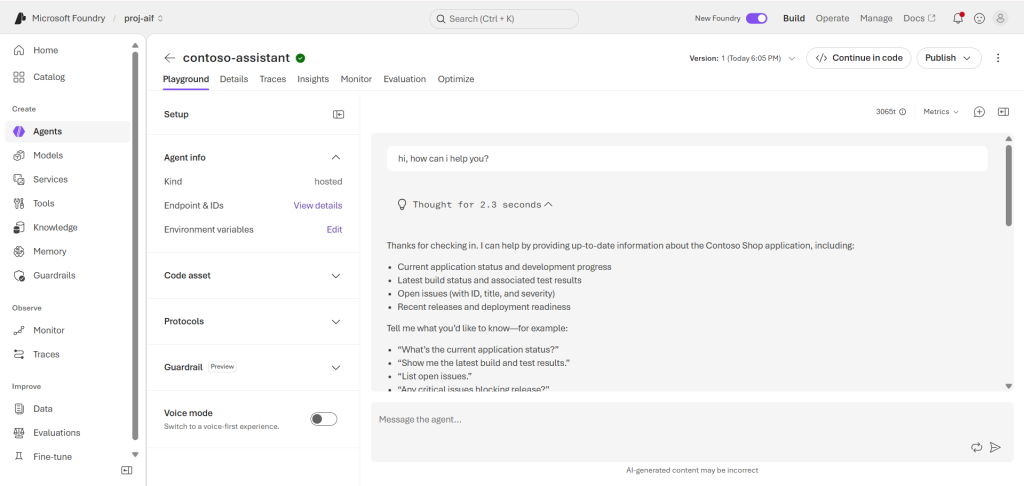
Figure 1: Testing the agent in the Microsoft Foundry Playground
The greeting was clean and the bullet points were helpful. But manual testing like this only covers a few questions.
Why Playground Testing Isn’t Enough?
Chatting with an agent in the playground is good for a quick check, but agents do a lot more than answer one-off questions:
- They handle multi-turn conversations: Users ask follow-up questions, and the agent must remember earlier context.
- They call tools: The agent must pick the right tool and pass valid inputs.
- They must follow guidelines: If data is missing or a user asks for an unauthorized action (like deploying code), the agent must handle it correctly.
Microsoft Foundry provides dedicated Agent Evaluation tools that test these multi-turn conversations and tool calls automatically.
Step-by-Step: Evaluating an Agent in Microsoft Foundry
Here is how you can set up an evaluation for your agent in Microsoft Foundry.
Step 1: Select Your Agent Target
In the Microsoft Foundry portal, navigate to Evaluations and click Create new evaluation. Select Agent as the target, and choose your agent (contoso-assistant).
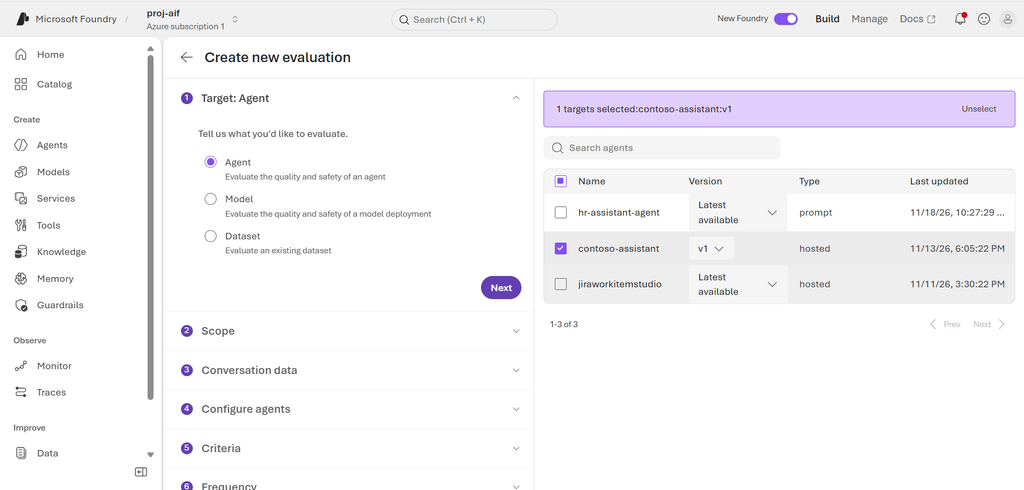
Figure 2: Selecting contoso-assistant as the target
Step 2: Choose “Full Conversations” Scope
Foundry gives you two options for evaluation scope:
- Individual turns: Evaluates single question-and-answer pairs.
- Full conversations: Evaluates complete multi-turn conversations from start to finish.
For my agent, Full conversations is the right choice because it tests whether the agent maintains context, uses tools properly across turns, and completes the user’s goal.
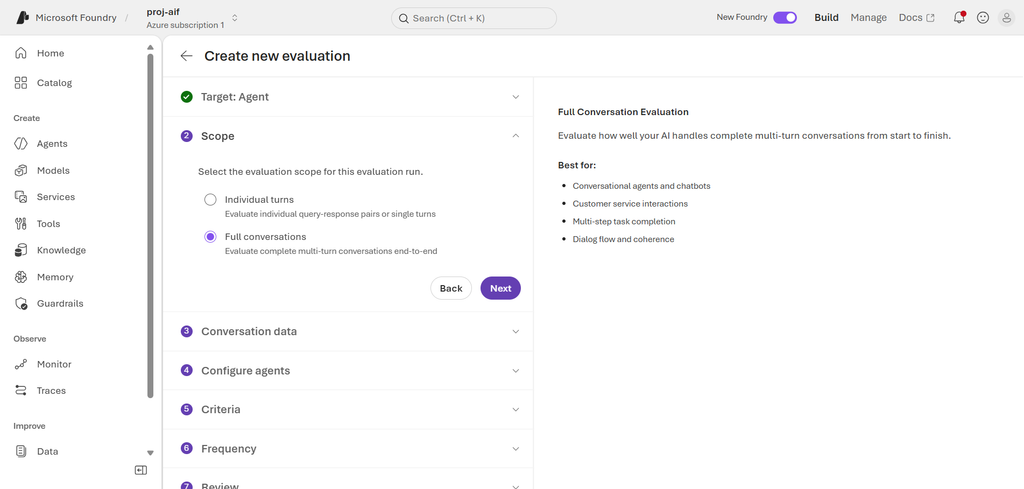
Figure 3: Choosing the Full Conversations scope
Step 3: Provide Conversation Data (Test Scenarios)
To evaluate an agent, you need conversation data. What’s great about Microsoft Foundry is that you don’t always have to create a separate test dataset from scratch. You have three flexible options:
- Upload a test dataset: Upload a file of test scenarios to stress-test your agent with specific edge cases (which is what I did).
- Use existing conversations: Evaluate past chats that the agent has already had with team members or testers.
- Evaluate live traffic: Connect directly to real-time user conversations as people chat with your agent in production.
For my evaluation, I uploaded a test file contoso-shop-agent-evaluation.jsonl. It contained realistic everyday scenarios:
- Checking application health and recent build status.
- Asking for non-existent release dates to see if the fallback message works.
- Asking the agent to approve or deploy code to verify safety rules.
Tip: If you are building a custom test dataset, focus on scenario coverage. Don’t test just four or five standard questions. Include edge cases, tricky prompts, and missing-data questions. The wider your test coverage, the fewer surprises you’ll see from real users.
Note on Dataset Format: When preparing your
.jsonlfile, make sure it matches the structure expected by Foundry. You can refer to Microsoft’s official Evaluation Dataset Schema Guide for the exact schema, field names, and format examples.
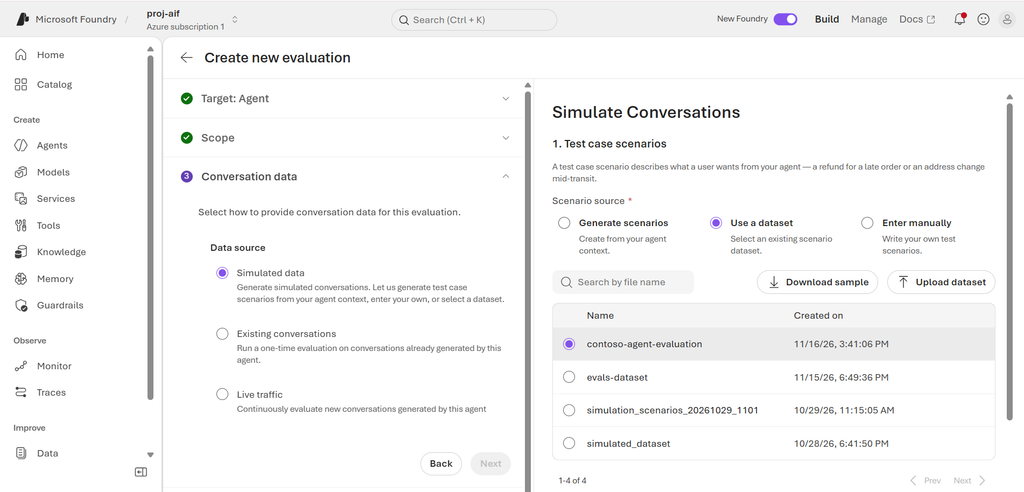
Figure 4: Choosing to simulate conversations with a dataset
Step 4: Configure and Verify the Agent
Next, Foundry allows you to review the prompt and version of the agent you want to evaluate to make sure you’re testing the right setup.
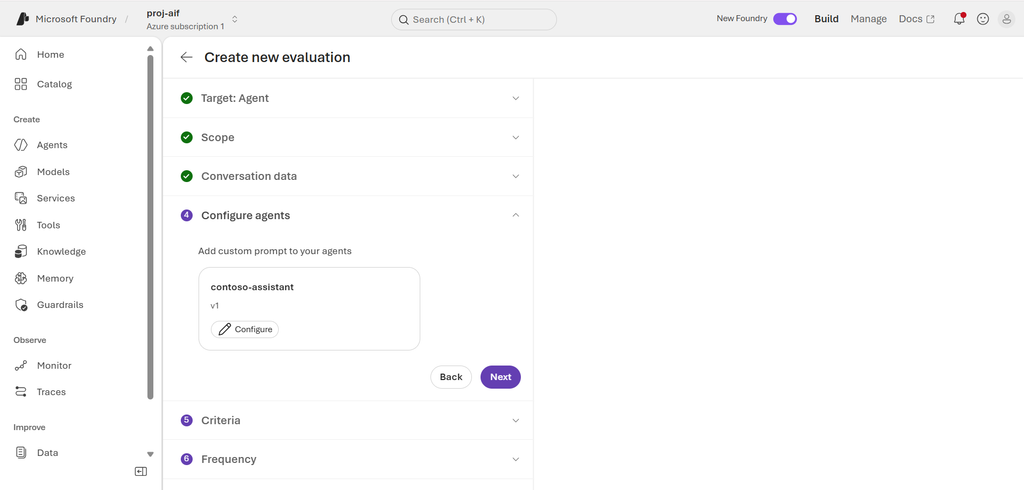
Figure 6: Reviewing the agent configuration
Step 5: Select Evaluation Criteria and Metrics
Foundry uses an AI model (like GPT-5) as a judge to evaluate how well your agent performed.
Instead of writing complex grading code, Foundry offers ready-made composite evaluators that group related metrics together:
- Tool use quality: Checks if the agent selected the right tool, passed correct parameters, and used the output properly.
- Task completion: Checks if the user’s request was successfully resolved.
- Output quality: Measures fluency, coherence, and adherence to instructions.
- Groundedness: Confirms that the answer was based strictly on tool data and not invented.
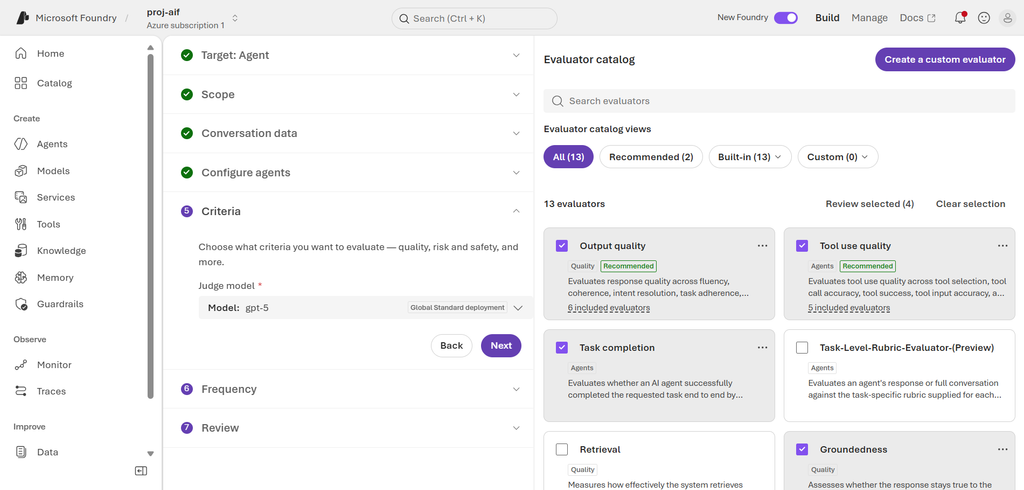
Figure 7: Selecting evaluators and judge model
Tip: To see the complete list of available evaluators and exactly what each one checks for under the hood, refer to Microsoft’s guide on Agent Evaluators in Microsoft Foundry.
Step 6: Set the Evaluation Frequency
Next, decide how often this evaluation should run:
- One time: Runs the test once right away.
- Recurring: Runs the test on a repeating schedule to continuously monitor quality.
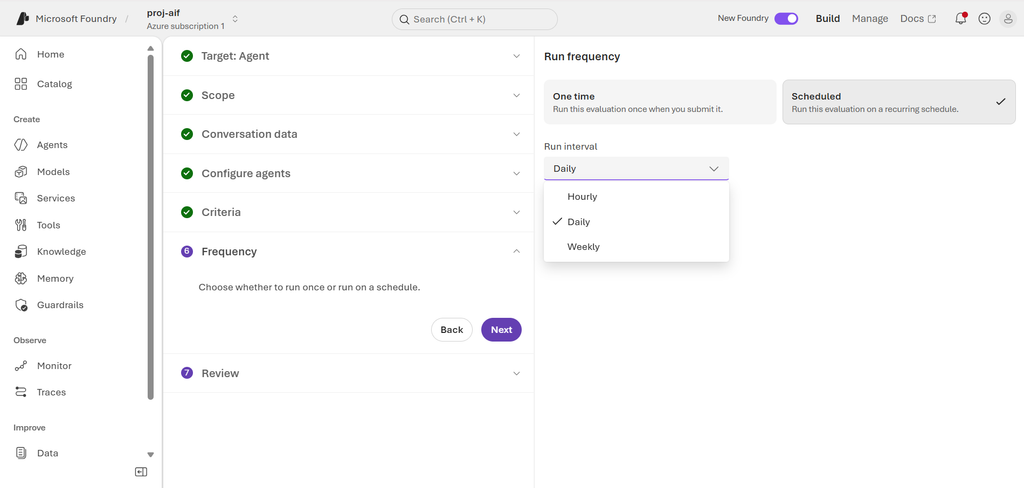
Figure 8: Choosing between One-time and Recurring evaluation
I set it to Recurring on a Daily schedule. This means Foundry runs the test suite every day, alerting us immediately if a prompt update or tool change causes quality to drop.
Step 7: Review and Submit
Review your configuration, name the evaluation (contoso-reccurring-agentevaluation), and click Submit.
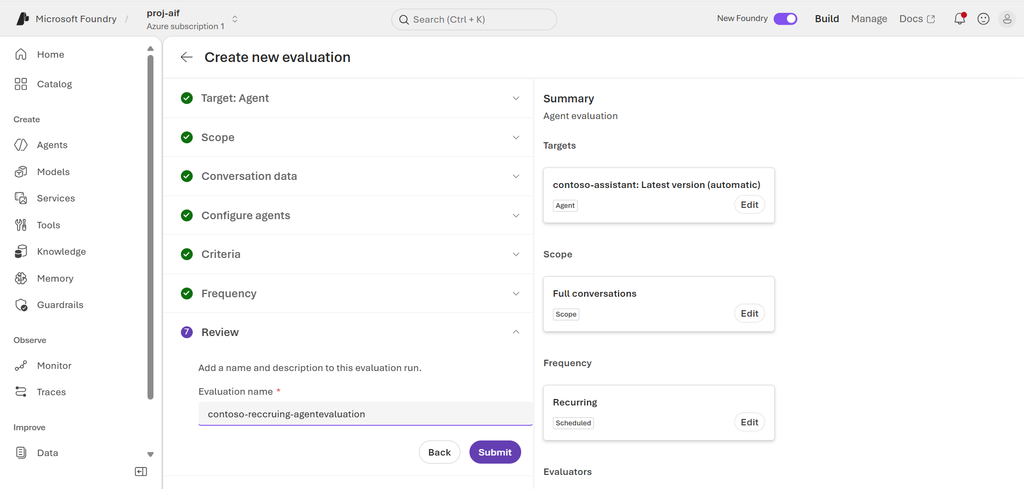
Figure 11: Reviewing and submitting the evaluation
Once submitted, Foundry runs the simulated conversations and scores each interaction. You can view the status of your runs directly under the agent’s Evaluation tab.
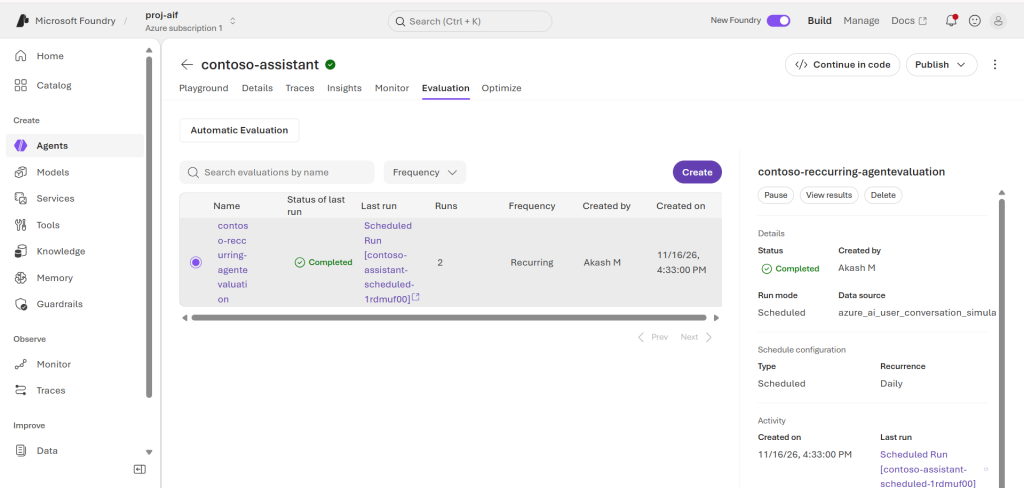
Figure 12: Completed evaluation runs listed in the agent dashboard
What the Evaluation Results Showed ?
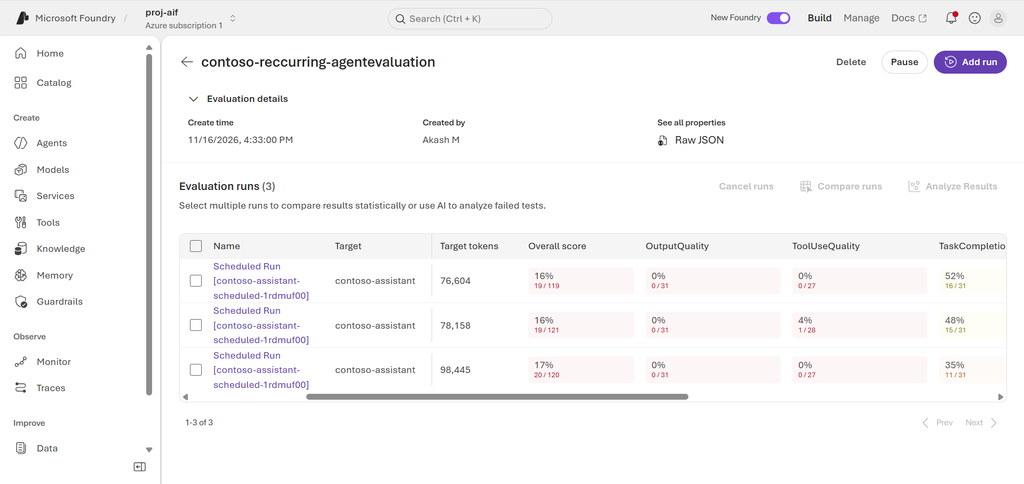
Figure 13: Evaluation results dashboard
The numbers were very revealing:
- Overall Score: 16% – 17%
- Output Quality: 0%
- ToolUse Quality: 0% – 4%
- Task Completion: 35% – 48%
Why Was the Score 16%?
In the playground, the assistant seemed fine. But the automated evaluators caught specific issues that manual testing missed:
- Tool Parameter Errors: The agent tried to call
get_open_issues()with an unsupported parameter (status="open"). The tool failed, causing the agent to miss the answer. - Missing Required Fields: The agent was instructed to include issue ID, title, and severity when reporting bugs. In several cases, it forgot to include the severity, leading to incomplete task scores.
- Missing the Required Fallback Phrase: The agent was instructed to reply:
“The requested information is not available in the current Contoso Shop data.”
Instead, it used its own wording, such as: “Sorry, I cannot help you with this.” While polite, it failed to follow the required response rule.
Without running an evaluation, these issues would have gone unnoticed into production.
What You Can Do: Practical Takeaways
If you are developing AI agents, here are a few simple tips to take away:
- Don’t rely only on playground chats: Manual testing only covers happy paths. Use automated evaluations to test edge cases and safety rules.
- Expand test coverage with more scenarios: Don’t stop at 5 or 10 standard queries. Build a diverse test set that includes missing data, edge cases, negative tests, and out-of-scope requests. Greater scenario coverage gives you genuine confidence before going live.
- Evaluate full conversations: Choose the “Full conversations” scope to see how your agent performs over multiple turns.
- Use composite evaluators: Tools like Tool Use Quality and Output Quality make it easy to measure both the process and the final answer.
- Set up recurring runs: A scheduled recurring evaluation helps catch regressions whenever prompts or tools are updated.
- Use results to improve your agent: Review failed runs to identify whether you need to fix a tool schema, refine instructions, or strengthen fallback rules.
Conclusion
Evaluating an AI agent does not have to be complicated. Microsoft Foundry provides straightforward tools to test multi-turn conversations, verify tool usage, and check rule adherence automatically.
Testing the Contoso Shop Assistant showed me that an agent can appear helpful in a manual chat while still failing critical rules behind the scenes.
Running an evaluation gives you the clarity you need to improve your agent before your users start using it.
Happy Learning!.